Custom Script on Exam Login Page

We would like to custom-script the Exam Login page to prevent students from using invalid or incorrect email addresses. This would resolve a major issue we are having with connecting students to their teachers in our LMS.
-

There may already be solutions available, but I would l love to hear a little more about the nature of the issue. Can you provide an example of the problem and what you envision as the best solution?
0 -
Here is our setup. Students take our courses in Thinkific and log in there first. We embed each Brillium exam inside a Thinkific lesson, so students reach the Brillium Exam Login page after they have already signed in to Thinkific.
We track every student by their Thinkific login email. Our LMS uses this email to connect students to their teachers and to match exam results to the right student record. When a student enters a different email on the Brillium login page, the exam result no longer matches anyone in our system.
Example 1: A student logs in to Thinkific as jsmith@school.org but enters a personal address such as johnsmith22@gmail.com on the Brillium login page. The result lands under an email we have no record of, and the teacher never sees the score.
Example 2: A student mistypes their email, such as jsmith@shcool.org. The result goes nowhere, and our staff has to find and fix the record by hand.
What we envision: the option to add a custom script to the Exam Login page. The script would pull the student’s name and email from their Thinkific profile and fill the login fields automatically. Ideally the email field would lock after autofill to prevent edits.
This removes human error from the login step and keeps every exam result tied to the same email the student uses in Thinkific.
If Brillium already offers another way to reach the same result, such as passing the name and email through URL parameters on the exam link, we would gladly use that option. Please let us know what exists today.
0 -
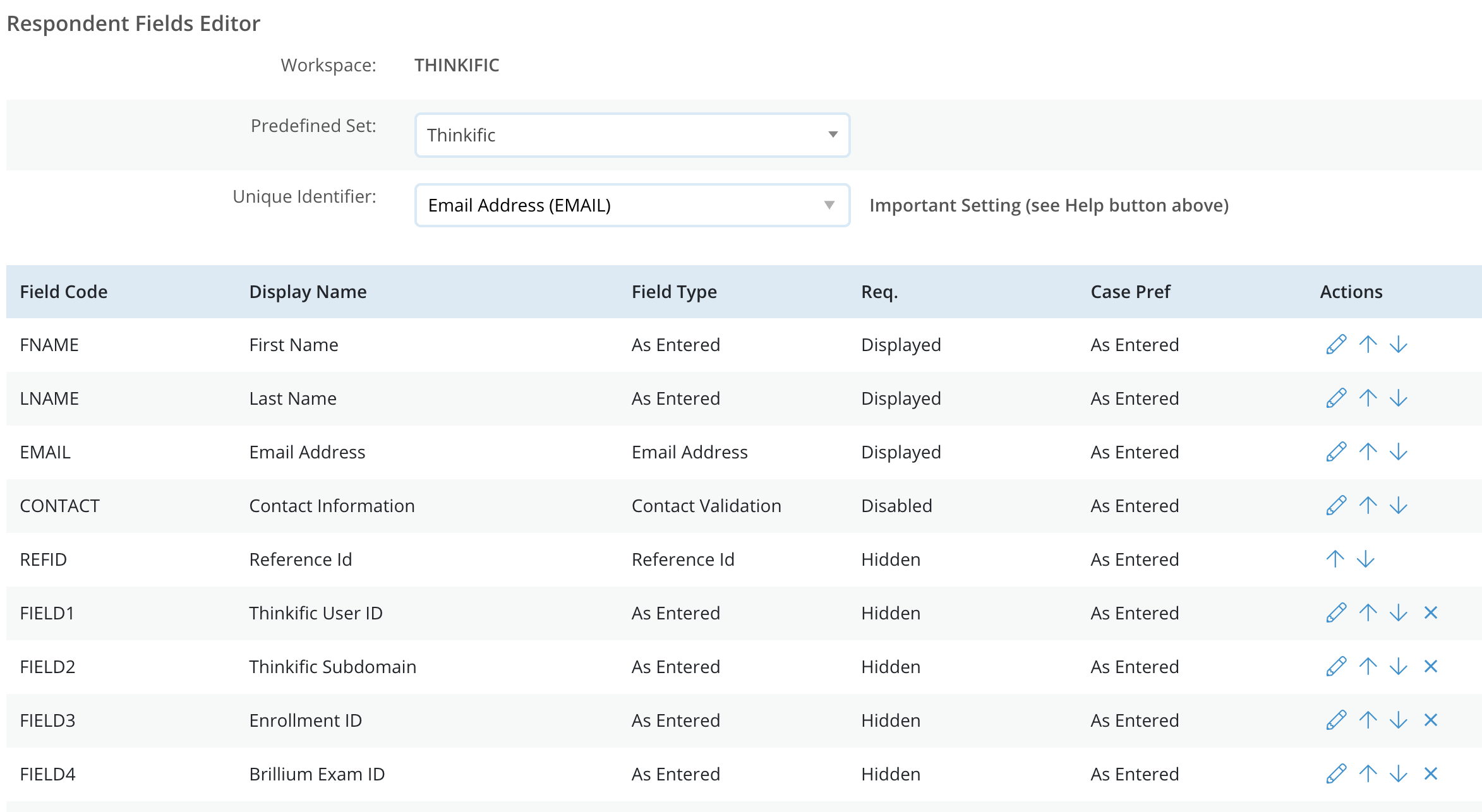
This is actually the way the Thinkific integration works. When you use the Respondent Fields Thinkific Integration Predefined Set (from the Respondent Fields drop down), it sets the email field to “Displayed” so that students cannot change it.
You may want to review the setup video we have here: How to Deliver Brillium Assessments to Thinkific Students. If you have a Workspace that is already being used for Thinkific integration, and have not modified any of the Respondent Fields 1 through 4, you should be able to safely use the Thinkific Predefined set.
This is how the respondent fields are configured with the Thinkific Preset (note the “Displayed” setting). A Respondent Field set to “Displayed” will show the data sent to Brillium but will not allow changes. This maintains integrity and allows for verification.
 0
0
Please sign in to leave a comment.
Comments
3 comments